Configuring Conversation Analyzer in Salesforce
- Helen Griffith
- Dawid Wietrzykowski (Unlicensed)
If Advanced Reports and Statistics is enabled and configured for your account, you can use Conversation Analyzer in Salesforce.
Conversation Analyzer adds the following features to your Salesforce org:
- Voice visualization
- Event timeline
- Transcript of the recording
- Categorization of the contents of the recording
- Transcript confidence score (High/Medium/Low)
- Sentiment summary and scores, if sentiment analysis is enabled for your account
If Conversation Analyzer is not enabled for your account, you can use call recording annotation. For information about configuring call recording annotation, see Configuring call recording annotation in Salesforce.
If enabled for your account, to use Conversation Analyzer in Salesforce, you must perform various configuration tasks.
Prerequisites for configuring Conversation Analyzer in Salesforce
Before you can configure Conversation Analyzer in Salesforce, you must install and configure Advanced Reports and Statistics. For information about Advanced Reports and Statistics, see Advanced Reporting and Statistics in Salesforce.
How do I make Conversation Analyzer available in Salesforce?
To see Conversation Analyzer components in Vonage Call Summary records, change the page layout that the Vonage Call Summary object uses:
- For inbound calls, use the Vonage Analytics Summary layout
- For outbound calls, use the Vonage Analytics Outbound Summary layout
- For internal calls, use the Vonage Analytics Internal Summary layout
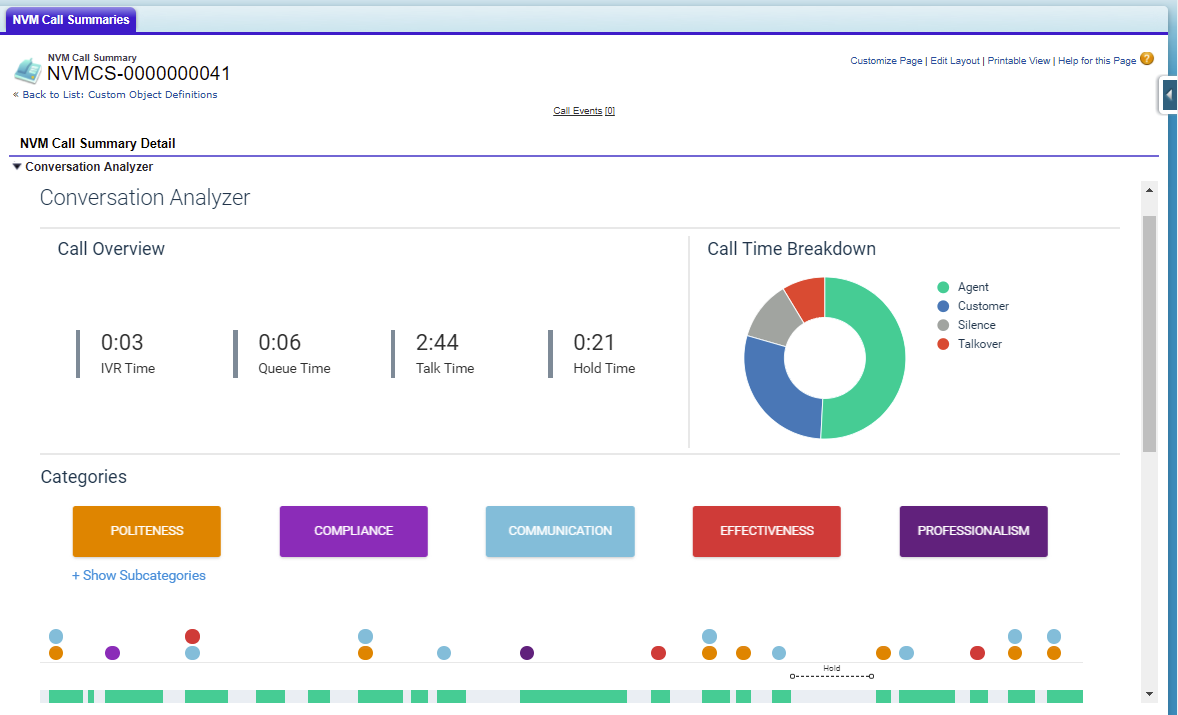
The top section of the page layouts embeds Vonage Contact Center's Conversation Analyzer into an Vonage Call Summary record. For information about the contents of Conversation Analyzer, see Conversation Analyzer.
You must be logged in to the VCC Admin Portal for the Call Recording Player, Call Recording Annotation or Conversation Analyzer page to be displayed.
You must have permission to view call recordings inside ContactWorld. If you do not have permissios, an error indicating that the recording was not found appears.
You must have the ContactWorld Agent or ContactWorld Supervisor permission sets to view this page. If you do not have the required permission set, a Salesforce permissions error appears. For information about Salesforce permissions, see ContactWorld Agent permissions and ContactWorld Supervisor permissions.
Other sections on the page layouts are customized for the call type, containing only the fields that are relevant to those calls.
When you or an agent views a Vonage Call Summary record, Conversation Analyzer for the related call appears. You can see Conversation Analyzer in the Conversation Analyzer section of the record.
How do I retrieve call recording analytics data or transcripts, or both, using Advanced Reporting and Statistics?
As well as retrieving call summary and agent state statistics, Advanced Reporting and Statistics can retrieve call recording analytics data from Vonage Contact Center. Advanced Reporting and Statistics can also retrieve call recording transcripts. Advanced Reporting and Statistics stores the additional data in fields on the Vonage Call Summary object.
To retrieve call recording analytics data or transcripts, or both, perform the following steps:
- Go to Setup in Salesforce.
- On the left-hand side of the Salesforce window, in the Quick Find field, type 'Installed Packages'.
- In the filtered list of items, click Installed Packages. Installed Packages appears.
Locate and click Vonage Advanced Reporting. Vonage Advanced Reporting (Managed) appears.
Alongside Post Install Instructions, click View.
In the Global Settings and Mappings section, in Flags, type 'SPEECH'.
Optional flags
You can add optional flags CAROWS and CA(0). For information about these flags, see Configuring when Vonage Call Summary records are created and Configuring storage of category and subcategory data later in this page.Click Save All. Fetch Analytics and Fetch Transcript check boxes appear in the Channels section.
- Alongside each channel, select check boxes as required:
Fetch Analytics. Select the Fetch Analytics check box to retrieve and store the following data:
Data to retrieve Fields to store data in Notes Category and subcategory data Category and subcategory data can be stored in one of the following places:
- Conversation Analyzer Insights records
Custom category and subcategory fields
Matched categories also appear in the Categories (NVMStatsSF__Categories__c) field.For information, see Configuring storage of category and subcategory data later in this page.
If you do not configure Conversation Analyzer Insights records or provide all related category and subcategory fields, Advanced Reporting and Statistics reports an error and does not retrieve applicable category and subcategory data.
Percentage of agent talk time Agent Percent (NVMStatsSF__Agent_Percent__c)
Fields appear in the Caller and Agent Related section. If the field do not appear, add them to the relevant Vonage Call Summary page layouts.
Percentage of talkover time Crosstalk Percent (NVMStatsSF__Crosstalk_Percent__c)
Percentage of customer talk time Customer Percent (NVMStatsSF__Customer_Percent__c)
Percentage of silence time Silence Percent (NVMStatsSF__Silence__c)
Level of confidence Confidence (NVMStatsSFConfidence__c) Language of call Language (NVMStatsSFlanguage__c) Sentiment summary and scores Sentiment (NVMStatsSF__Sentiment__c) Field appears in the Information section in the Vonage Call Summary object if sentiment analysis is enabled for your account. If the sentiment field does not appear, add it to the relevant Vonage Call Summary page layouts. - Fetch Transcript. Select the Fetch Transcript check box to retrieve call recording transcripts. The transcript is stored in the Call Transcription field and is searchable within Salesforce.
- Click Save All. Next time a transaction runs, it uses the new settings and retrieves additional analytics data. Advanced Reporting and Statistics populates Vonage Call Summary record fields as appropriate.
Configuring when Vonage Call Summary records are created
From Advanced Reporting and Statistics version 2.84 onwards, you can add the CA(0) flag. This flag determines how quickly the package should get data for Vonage Call Summary records. By default, the package waits 3600 seconds between Vonage Call Transcription, Categorization, and pulling the resultant data into Salesforce. CA(0) instructs the package to override the default wait of 3600 seconds with 0 seconds. Because Conversation Analyzer data is checked every 15 minutes, this will typically load the analytics data into your org 1–16 minutes after the data analysis is completed. You may use other values but 0 is recommended.
Configuring storage of category and subcategory data
From Advanced Reporting and Statistics version 2.84 onwards, you have two different ways of storing category and subcategory data, each with different benefits.
Using Conversation Analyzer Insights records
You can store the data in Conversation Analyzer insights records. Advanced Reporting and Statistics creates a new record in Salesforce for each identified subcategory. While this uses additional Salesforce storage, it significantly reduces administration tasks and simplifies reporting.Data storage requirements
The maximum number of rows created for each call — if all your defined Conversation Analyzer categories are matched at least once — is number of categories x number of subcategories.
Each row consumes 2 kB of Salesforce data storage.
For information, see Configuring Conversation Analyzer Insights records.
- Using custom fields for categories and subcategories
You can store the data in custom category and subcategory fields on the Vonage Call Summary record. (The Advanced Reporting and Statistics managed package provides custom fields to store other analytics data.) Each category and subcategory requires a corresponding field. While this approach integrates the data into existing call objects, avoiding additional storage usage, it increases admin tasks as you need to add new fields each time you have a new category or subcategory. Reporting on this data using this method is also more complex.
For information, see Creating custom fields for categories and subcategories.
You can configure one, both, or neither way. If you don't configure either, Advanced Reporting and Statistics doesn't retrieve any category and subcategory data.
Configuring Conversation Analyzer Insights records
To store category and subcategory data in Conversation Analyzer Insights records, perform the following tasks:
- Add the CAROWS flag. This flag instructs the Advanced Reporting and Statistics to create child Conversation Analyzer Insights records under a Vonage Call Summary record. A Conversation Analyzer Insights record is created for each subcategory (along with its category) match for each call. This avoids the need to create custom fields for categories and subcategories but will require additional Salesforce storage.
- Optionally (but recommended), add the Conversation Analyzer Insights related list to the applicable Vonage Call Summary page layouts. Then add the columns in the related lists in the Vonage Call Summary records. This will display the retrieved data in Vonage Call Summary records.

Next time Advanced Reporting and Statistics runs, it retrieves category and subcategory data and creates Conversation Analyzer Insights records as required.
Creating custom fields for categories and subcategories
To add custom fields for categories and subcategories, create a custom checkbox field for each category and a number field for each subcategory you have configured for the Conversation Analyzer feature. Set Field Name — as referenced by APIs — for the fields using the following format:
- Categories: Category__c
- Subcategories: Category_subcategory__c
Set Default Value for the field to Unchecked for the category check boxes and 0 for the subcategory number fields.
The values you specify in Field Name fields are case-insensitive. Field Name values must be a case-insensitive match for the category and subcategory names as configured in Vonage Contact Center.
Where spaces and other nonalphanumeric characters appear in the names used in Vonage Contact Center, replace such characters with an underscore (_) character. Advanced Reporting and Statistics do not support names with two consecutive underscores, and names are subject to the length limit for Field Name values in Salesforce. For information about field names in Salesforce, see Salesforce help.
Salesforce appends the __c to Field Name indicating that this is a custom field.
Field Label values, which appear in records and on reports, do not need to match a specified format, but we recommend that you align them to the Field Name values.
For example, if you have a Communication category and an Active listening subcategory, create fields with the following types, labels, names, and default values:
| Category/subcategory | Type | Field type | Field Label | Field Name | Default Value |
|---|---|---|---|---|---|
| Communication | Category | Checkbox | Communication | Communication__c | Unchecked |
| Active listening | Subcategory | Number | Active listening | Communication_Active_listening__c | 0 |
Optionally, create a section on the summary page layouts and add the category and subcategory custom fields. This will display the retrieved data in Vonage Call Summary records.
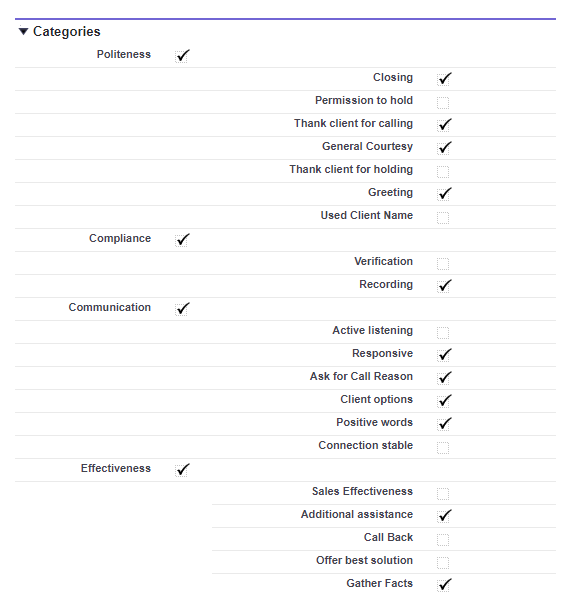
Next time Advanced Reporting and Statistics runs, it retrieves category and subcategory data and populates custom fields as appropriate. A checked field indicates that the transcript of the call recording matched the category or subcategory.
Creating custom fields for sentiment percentages and scores
If sentiment analysis is enabled for your account, you can configure Advanced Reporting and Statistics to retrieve sentiment summaries and scores along with call recording analytics data or transcripts, or both. For information about retrieving sentiment data, see the Fetch Analytics table earlier in this page. If you retrieve this data, the Sentiment field will contain a string of concatenated sentiment data. For information about this data, see Analyzing a call recording in Conversation Analyzer in Salesforce.
To make this data easier to read, or to report on it, you can separate the data into multiple fields. The following code samples extract data from a Sentiment field, for example:
Overall:+0.65, VeryNegative:5, Negative:25, Neutral:40, Positive:20, VeryPositive:10,
Scores:+0.00,+0.00,-0.11,+0.00,+0.00,+0.00,+0.56,+0.61,+0.75,+0.77
Overall score
Sentiment percentages
Sentiment scores
For general assistance, please contact Customer Support.
For help using this documentation, please send an email to docs_feedback@vonage.com. We're happy to hear from you. Your contribution helps everyone at Vonage! Please include the name of the page in your email.