Adding a custom button to a Dial List list view
How do I add a custom button to a Dial List list view?
In Salesforce, you can add standard or custom buttons to list views, providing shortcuts to commonly performed tasks.
In Connect, you can create Dial Lists in various ways including uploading a Dial List from a CSV file and creating a Dial List from a Salesforce report. For information about uploading a Dial List and creating a Dial List from a report, see Creating a Dial List from a file upload and Creating a Dial List from a report. To make one or both of these features available, you must add one or both custom buttons to the Dial Lists List View.
- Creating the VisualForce page for a Create Dial List button
- Creating a Create Dial List button for a standard object
- Creating a Create Dial List button for a custom object
- Adding a Create Dial List button to a List View page for a standard object
- Adding a Create Dial List button to a List View page for a custom object
To add a custom button, perform the following steps. This example shows how to add the Upload List button.
- Go to the Administration Setup Page in Salesforce.
- On the left-hand side of the Salesforce window, in the App Setup section, expand Create.
- In the expanded list of items, click Objects. Custom Objects appears.
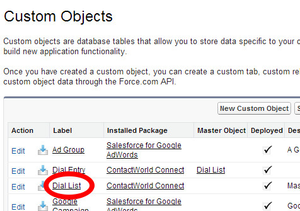
Locate Dial List in the list of custom objects.
Click Dial List.
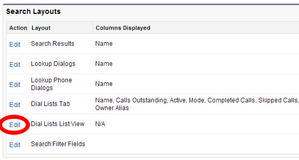
In the Search Layouts section, locate the Dial Lists List View layout.
Click Edit. Dial Lists List View appears.
In the Custom Buttons section, select Upload List in Available Buttons.
Click Add. Upload List appears in Selected Buttons.
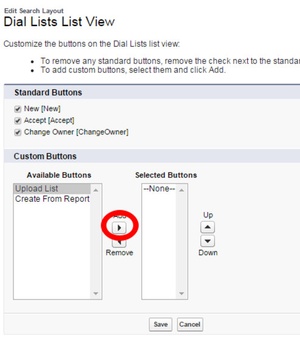
- Click Save. The Upload List button now appears in the Dial List views.
For information about using the Upload List button, see Creating a Dial List from a file upload.
For general assistance, please contact Customer Support.
For help using this documentation, please send an email to docs_feedback@vonage.com. We're happy to hear from you. Your contribution helps everyone at Vonage! Please include the name of the page in your email.