
Configuring single sign-on
- Helen Griffith
- Dawid Wietrzykowski (Unlicensed)
Single sign-on enables you and your agents to log in to your Vonage Contact Center (VCC) account by logging in to the linked Salesforce, Microsoft, or Vonage account, or any other configured provider account, instead of using their VCC username and password. You can enable multiple single sign-on providers at one time. To configure and use single sign-on, the feature must be enabled for your account.
Currently, configuring single sign-on for your Vonage Business Cloud (VBC) account enables same sign-on; same sign-on means that you must re-enter your VBC credentials to log in to VCC even if you are already logged in to your VBC account.
How do I configure single sign-on?
To configure single sign-on, perform the following steps:
- Log in to the VCC admin portal and go to Configuration (within Account Settings). Configuration appears. For information on accessing Configuration, see Editing Configuration (Account Settings).
- Click the Single Sign-On tab. The Single Sign-On area appears.

In the Admin portal and ContactPad fields in the Single sign-on URLs section, the URLs that VCC admin portal supervisors and agents must use to access the single sign-on pages are displayed. Click the icon alongside the field to copy the contents of the field to the Clipboard.
Provide the admin portal URL to VCC admin portal users, both supervisors and non-Salesforce agents. Users should bookmark this URL to always use the single sign-on page.
To make the single-sign on page available to agents in ContactPad in Salesforce, paste the ContactPad URL into the CTI Adapter URL field in your call center settings in Salesforce.Configure single sign-on for one or more of Salesforce, Microsoft, and Vonage. For information about configuring single sign-on for Salesforce, Microsoft, and Vonage, see How do I configure single sign-on using Salesforce?, How do I configure single sign-on using Microsoft accounts?, and How do I configure single sign-on using Vonage?.
- Click Update. Now when you or your agents go to log into the VCC admin portal or ContactPad using the appropriate URLs, the single sign-on feature is available.
For information about using single sign-on in the VCC admin portal or ContactPad, see Logging in to the Vonage Contact Center admin portal using single sign-on or Logging in to ContactPad using single sign-on.
You and your agents must use the VCC admin portal's single sign-on URL to log in to the VCC admin portal or ContactPad. The syntax for the single sign-on URL is https://***.cc.vonage.com/CallCentre/?account=AccountName, where *** represents the subdomain for your region and AccountName represents the name of your account.
How do I configure single sign-on using Salesforce?
To configure single sign-on for Salesforce, after completing the steps in the Single sign-on URLs section, provide the following information in the Salesforce section:
Your VCC account must be linked to a Salesforce org.
If multiple VCC accounts are linked to the same Salesforce org, single sign-on users can choose between those accounts in the usual way after signing in through Salesforce.

Pre-authorizing single sign-on for approved users
The first time a Salesforce user uses single sign-on to log into the VCC admin portal through Salesforce, by default, an Allow Access dialog box appears. The user must click Allow to enable VCC to use their Salesforce credentials to log in to the VCC admin portal.
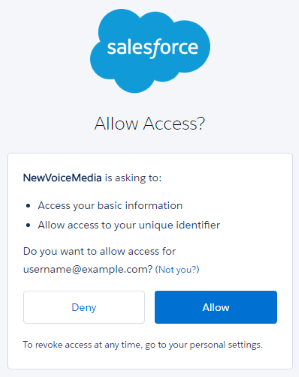
If using VCC version 16.106 or above in Salesforce, you can pre-authorize this access for approved users. To pre-authorize single sign-on for approved Salesforce users, you must configure the OAuth policies and permissions for the connected app 'VCC'.
For more information about configuring connected apps and their OAuth policies, see Salesforce help.
How do I configure single sign-on using Microsoft accounts?
To configure single sign-on for Microsoft accounts that use Microsoft Azure Active Directory, after completing the steps in the Single sign-on URLs section, provide the following information in the Microsoft section:
| Field | Options | Description |
|---|---|---|
| Enable | Select or clear | Use the Enable check box to enable and disable single sign-on using Microsoft accounts. Select the Enable check box to enable single sign-on using Microsoft accounts. When you or your users go to VCC admin portal's single sign-on URL, a Microsoft button appears on the login page. |
| Active Directory name/domain | Your Microsoft Azure Active Directory domain name, typically the domain included in your Azure Active Directory username. For example, you use username@example.com, type 'example' in the Active Directory name/domain field. If the domain you provide does not exist, when you click Update, an error appears. | |
| Identifier fields | The identifier fields determine the values used to match the VCC admin portal users and Microsoft accounts. By default, VCC uses the email addresses of the Microsoft accounts and the VCC admin portal users to match the accounts and users. The Microsoft email address used to log in must match the email address of a single supervisor or agent user in the VCC admin portal. Use the identifier fields to define the values that VCC must use to match the users if you do not want to use the default. The help text at the bottom of the Microsoft section updates when you select identifiers. | |
| VCC identifier | List of supported identifiers | VCC can identify agents and supervisors in the VCC admin portal using the value in any of the supported identifiers. Select the identifier that you want VCC to use to locate the VCC admin portal user that matches the logged in Microsoft account. Supported VCC identifiers:
You can modify the values for these identifiers in User Admin. External ID contains the value in the SSO External ID field. |
| Microsoft identifier | List of supported identifiers | VCC can obtain the value in any of the supported identifiers for the logged in Microsoft account. VCC can then use that value to locate the corresponding the VCC admin portal user. Select the Microsoft identifier that you want VCC to use to locate the corresponding the VCC admin portal user. Supported Microsoft identifiers:
|
If multiple VCC accounts have the same Active Directory domain, single sign-on users can choose between those accounts in the usual way after signing in through Microsoft.

How do I configure same sign-on using Vonage?
To configure single sign-on for Vonage, after completing the steps in the Single sign-on URLs section, provide the following information in the Vonage section:
| Field | Options | Description |
|---|---|---|
| Enable | Select or clear | Use the Enable check box to enable and disable single sign-on using Vonage. Select the Enable check box to enable single sign-on using Vonage. When you or your users go to the VCC admin portal's single sign-on URL, a Vonage button appears on the login page. |
| Vonage account ID | Account ID field | Your Vonage account ID. VCC needs your Vonage account ID to enable you to log in using Vonage credentials. If you provide the wrong account ID, single sign-on will not work. |
| Identifier fields | The identifier fields determine the values used to match VCC admin portal and Vonage users. By default, VCC uses VCC admin portal users' email addresses and Vonage usernames to match the users. The Vonage username used to log in must match the email of a single supervisor or agent user in the VCC admin portal. Use the identifier fields to define the values that the VCC admin portal must use to match the users if you do not want to use the default. The help text at the bottom of the Vonage section updates when you select identifiers. | |
VCC identifier | List of supported identifiers | VCC can identify agents and supervisors in the VCC admin portal using the value in any of the supported identifiers. Select the identifier that you want VCC to use to locate the the VCC admin portal user that matches the logged in Vonage user. Supported VCC identifiers:
You can modify the values for these identifiers in User Admin. External ID contains the value in the SSO External ID field. |
| Vonage identifier | List of supported identifiers | VCC can obtain the value in any of the supported identifiers for the logged in Vonage user. VCC can then use that value to locate the corresponding VCC admin portal user. Select the Vonage identifier that you want VCC to use to locate the corresponding VCC admin portal user. Currently Vonage supports only Username. The Username identifier contains the username that the Vonage user uses to log in. |

How do I configure single sign-on for an external provider?
If enabled for your account, you can configure single sign-on for any external identity provider who supports OpenID Connect (OIDC). You must be able to generate a Client ID and provide a URL for the OIDC issuer (the domain you use with the provider). For information about OIDC, see OpenID Connect.
Prerequisites for configuring single sign-on for an external provider
Your external identity provider must support OpenID Connect Discovery.
Your provider must also make a JSON document available at {Issuer URL}/.well-known/openid-configuration. For more information, see Obtaining OpenID Provider Configuration Information.
Our servers must have access to your provider—make sure you include our servers in any firewall permissions. For information about our servers and their addresses, see Technical prerequisites.
Flows
Your provider must use the hybrid flow (a combination of aspects of authorization code flow and implicit flow):
- No
client_secretis required. - Response type (
response_type) iscode id_token. - Response mode (
response_mode) isform_post.
Scopes
Your provider must permit the following scopes:
openidemailprofile
Claims
The generated id_token must contain one or more of the following claims; we do not make additional requests to the userinfo endpoint:
email(External identifier is Email)preferred_username(External identifier is Username)sub(External identifier is Subject)
The claim required depends on the External identifier you specify when you configure single sign-on.
Redirect URIs
When authorized, your provider must redirect the request to https://***.cc.vonage.com/Auth/signin-customoidc, where *** represents a regional subdomain. Replace *** with the correct subdomain for your region.
| Region | URL subdomain | Base URL |
|---|---|---|
| EMEA | emea | https://emea.cc.vonage.com |
| USA | nam | https://nam.cc.vonage.com |
| APAC | apac | https://apac.cc.vonage.com |
Multi-tenancy and cloud providers
Be careful when configuring single sign-on for an external cloud provider. With multi-tenanted and cloud providers, OAuth applications can often be used by any tenant or customer. You should use this feature where only your users can use the OAuth app with the provided client ID to login to VCC.
We have checked and support the use of Okta, Auth0 and ADSF 2016. Do not configure single-sign on for Google using this method.
To configure single sign-on for an external provider, provide the following information in the Custom OIDC SSO section:

| Field | Options | Description |
|---|---|---|
| Enable | Select or clear | Use the Enable check box to enable and disable single sign-on using OIDC. Select the Enable check box to enable single sign-on using OIDC. When you or your users go to the VCC admin portal's single sign-on URL, an OIDC button appears on the login page, using the Name you have specified. |
| Name | The label that appears on the button on the single sign-on login page. Type the label you want to appear on the button that you and your users will use to log in to VCC using the external provider. The value can be up to 14 characters. | |
| Client ID | The client ID used to authenticate with the external provider. Generate the client ID in the provider's application. Copy the ID into Client ID. | |
| OpenID Connect (OIDC) Issuer URL | The single sign-on initialization URL that is used to log in to the external provider. Type the URL into OpenID Connect (OIDC) Issuer URL. | |
| Identifier fields | By default, the VCC admin portal uses email addresses to match external provider users and VCC users. The external provider user's email address used to log in must match the email address of a single VCC supervisor or agent user. If you do not want to use email addresses, use one or both identifier fields to define the values that the VCC admin portal should use to match the users. When you change identifier values, the help text at the bottom of the Custom OIDC SSO section updates. | |
VCC identifier | List of supported identifiers | VCC can identify agents and supervisors in the VCC admin portal using the value in any of the supported identifiers. Select the identifier that you want VCC to use to locate the VCC admin portal user that matches the logged in external provider user. Supported VCC identifiers:
You can modify the values for these identifiers in User Admin. External ID contains the value in the SSO External ID field. |
| External identifier | List of supported identifiers | VCC can obtain the value in any of the supported identifiers for the logged in external provider user. VCC can then use that value to locate the corresponding VCC admin portal user. Select the External identifier that you want VCC to use to locate the corresponding VCC admin portal user. Supported external provider identifiers:
|
How do I enforce single sign-on for agents and supervisors?
When you have configured single sign-on using one or more single-sign-on providers, you can prevent agent or supervisor users from logging in using a username and password. To do so, in the Advanced Settings section, select the Non-admin users must use single sign-on check box. When this check box is selected, only admin users can log in using their username and password. All other users must log in using single sign-on.
For general assistance, please contact Customer Support.
For help using this documentation, please send an email to docs_feedback@vonage.com. We're happy to hear from you. Your contribution helps everyone at Vonage! Please include the name of the page in your email.