Configuring agent states
- Helen Griffith
| In this page |
|---|
How do I add a new existing agent state?
Agent states track an agent's activity and make an agent available to take calls. For more information about agent states, see Agent states in ContactPad.
If your account is enabled to do so, you can add new minor agent states, and edit new and existing minor states. You can also set the initial agent login state.
Minor state limit
To add a new minor agent state, perform the following steps:
- Log in to the VCC Admin Portal and go to Configuration (within Account Settings). Configuration appears. For information on accessing Configuration, see Editing Configuration (Account Settings).
- Click the Agent States tab. The Agent States area appears.
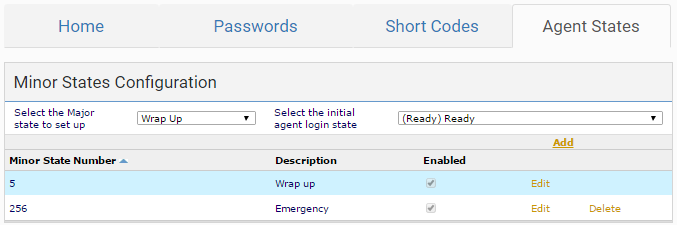
In the Select the Major state to set up list, click the major state that you are creating a new minor state for. The list of existing minor states appears.
Restrictions
You cannot add new minor states to the Ready state.
Click Add. A new minor state appears at the bottom of the list of minor states.
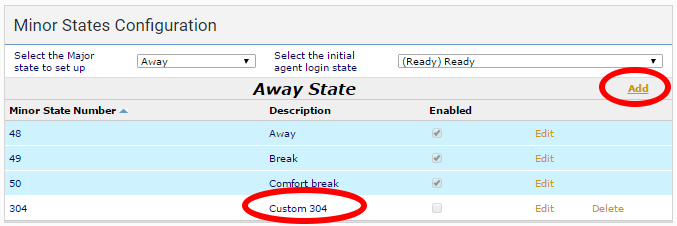
How do I edit an existing agent state?
To edit a new or an existing minor state, perform the following steps:
Click Edit alongside the minor state.
The minor state appears in edit mode. Change the name—this name appears in the agent's ContactPad—if required. Select or click to clear the corresponding Enabled check box to enable or disable the minor state.
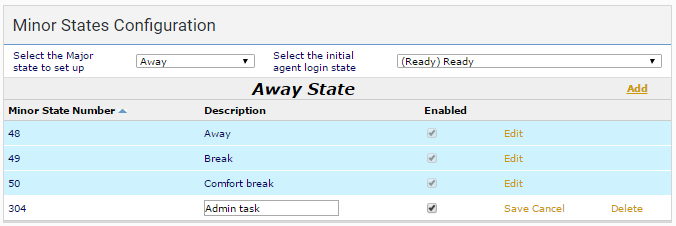
- Click Save and then Cancel. The minor state is saved.
How do I set the initial agent login state?
When an agent logs into ContactPad, their initial state will be that state set in the Agent States area.
To set the initial agent login state, click the required state in the Select the initial agent login state list in Configuration (Account Settings)). The Select the initial agent login state list contains both default and custom states.
Manual wrap initial states
We recommend that you do not select Wrap Up as the initial login state due to potential issues.
For more information about configuring agent states, see:
- Editing Configuration (Account Settings) (account-level wrap times for outbound interactions and transfers)
- Configuring individual users (user-level outbound wrap time, no answer timeout, and so on)
- Configuring groups (group-level maximum wrap time)
For general assistance, please contact Customer Support.
For help using this documentation, please send an email to docs_feedback@vonage.com. We're happy to hear from you. Your contribution helps everyone at Vonage! Please include the name of the page in your email.